When I first heard about Git, I thought it was just another tool that developers use. But after learning about it, I understood that Git is a tool that helps us keep track of all changes we make in our projects.
Imagine you are writing a project. Every day you make some changes. One day you accidentally delete an important file. Git helps you revert to an earlier version of your project without losing your work.
What is Git?
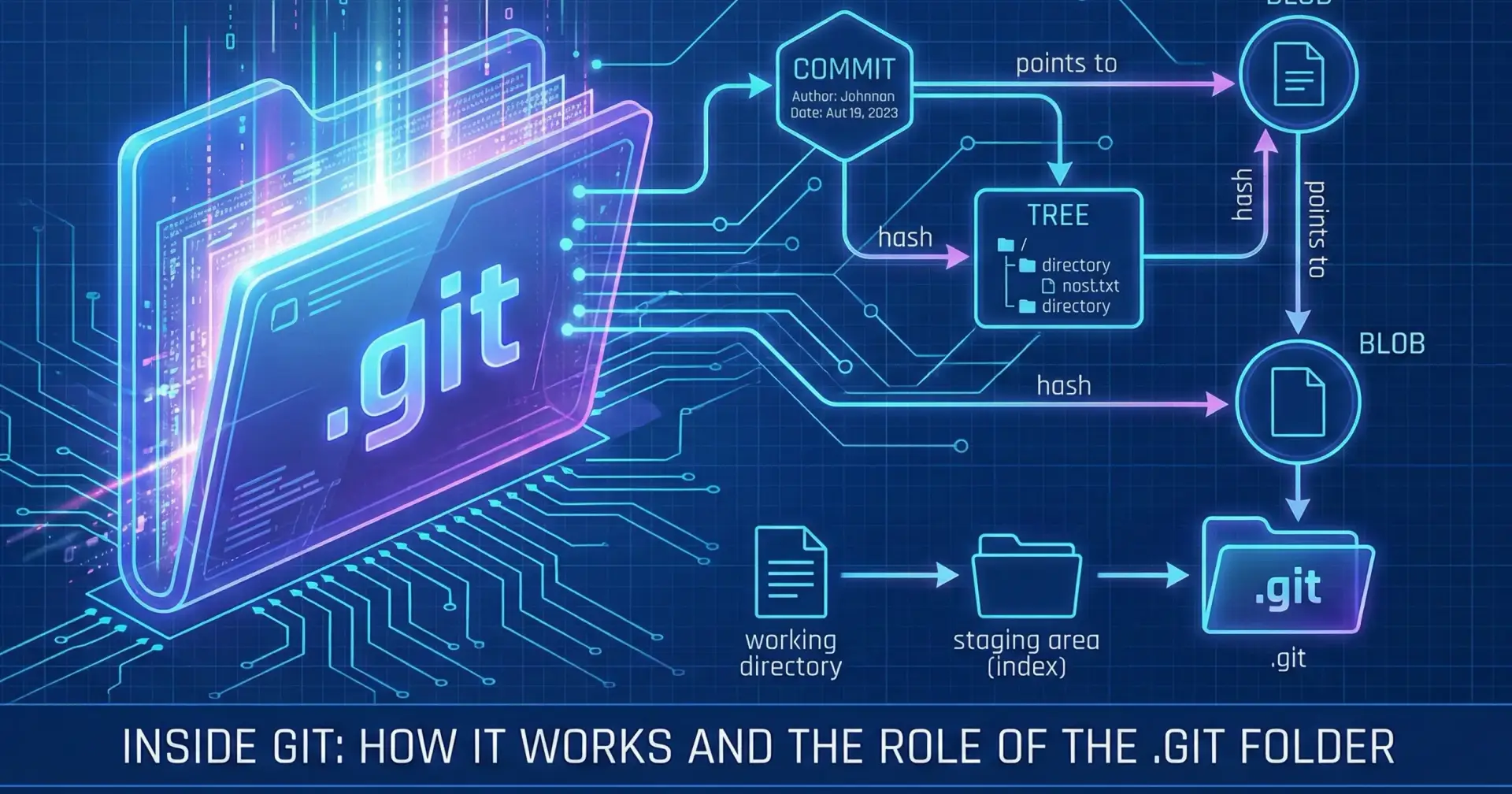
Git is a distributed version control system that helps developers track changes in their projects. It allows developers to save different versions of their code and collaborate efficiently with teams.
Why is Git used?
Before Git, developers had to create multiple copies of the same project to save different versions. This made it difficult to manage changes. Git solves this problem by storing the complete history of the project. It also makes teamwork much easier because everyone can work on the same project without overwriting each other's code.
Important Git Terms-
Repository:
A repository is simply the place where our project and its history are stored. You can think of it as the main folder of your project that Git manages.
Example: If I am building a portfolio website, all my HTML, CSS, JavaScript files and their change history will be stored inside the Git Repository.
Commit:
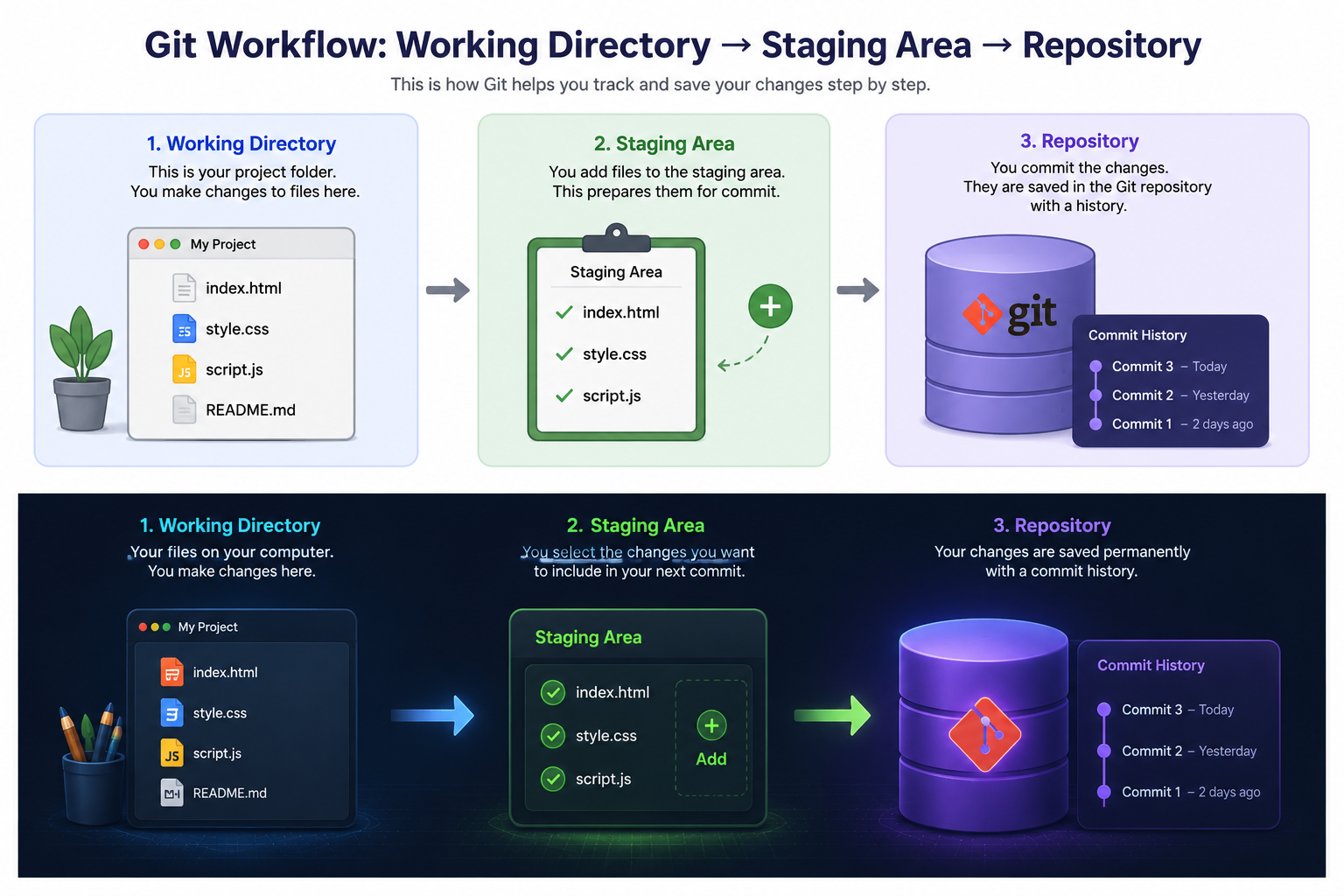
A commit is like saving the progress of your work. Whenever we complete a small task, we create a commit so that we can remember what changes were made at that time.
Example: If I complete the login page today, I can create a commit with the message "Added Login Page" Tomorrow, if something breaks, I can easily return to this saved version.
Branch:
A branch allows developers to work on new features without affecting the main project. This is useful because we can test new ideas safely before adding them to the main code.
Git Commands
git init - The command used to create a new Git repository inside our project folder. It tells Git that we want to start tracking this project.
git init
git status- Abhi project ki situation kya hai? This command shows the current state of our project. It tells us which files have been changed, added or are still untracked.
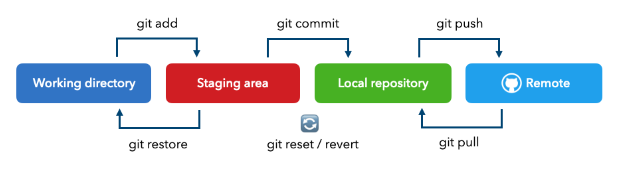
git add-Changes ko staging area me bhejna: This command moves the selected files to the staging area so they are ready to be committed.
git commit-Changes ka save point: This command saves our staged changes permanently in the Git history. It is always a good practice to write a meaningful commit message.
git diff - Maine exactly kya change kiya?: This command shows the changes that are currently in my working directory but have not been staged yet.
git diff
Example:
Pehle:
<h1>Hello</h1>
Ab:
<h1>Hello, I am Nandani</h1>
git diff tumhe batayega ki kya line add/remove hui.
After making some changes, I don't always want to commit immediately. First, I can use git diff to check exactly what I changed. This is useful when I want to review my work before staging it.
git log — Purani commits ki history:
commit abc123
Author: Nandani
Message: Add portfolio homepage

commit xyz456
Author: Nandani
Message: Create project structure
This command works like the history section of my project. It shows the commits that have been made and helps me understand how the project has changed over time.
Short version: git log --oneline
HEAD-(Mai abhi kaha hu?): HEAD is basically Git's way of pointing to where I am currently in the commit history. In normal work, it points to the latest commit on the current branch.
Commit A → Commit B → Commit C
                         ↑
                        HEAD
git branch — (Alag line me kaam karna):
Ab maan lo tumhara main project ready hai. Tumhe ek new login page banana hai. Lekin tum main project ko disturb nahi karna chahte.
git branch login-page
Ye new branch create karega.
Branches dekhne ke liye:
git branch
git clone — Existing project ko apne computer par lana: Agar GitHub par already project hai:
git clone <repository-url>
git clone creates a local copy of an existing repository on my computer
git push - Local se GitHub: Tumne locally commit kar liya. Ab GitHub par bhejna hai:
git push
git push sends my local commits to the remote repository.
git pull- GitHub se latest changes lena: Agar team member ne GitHub par changes push kiye hain:
git pull
git pull gets the latest changes from the remote repository and integrates them into my current branch.